
Sidebar
howto:automatically_scan_folders
This is an old revision of the document!
How to automatically scan folders
This tutorial describes how to use DropIt to automatically scan defined folders at a time interval and process their content.
DropIt can be considered as a “Personal Assistant to automatically manage files” and the reason is the Folder Monitoring feature, available from Options (Monitoring tab).
Configure Monitoring
To start to use this feature you only need to:
- select “Enable scan of monitored folders”,
- define a scanning time interval (for example something like 50-60 seconds),
- define a minimum size (leave 0 to ignore this feature),
- select “Show progress window for monitored folders” (if you want it).
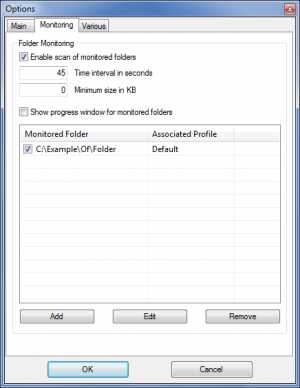
Your folders will be scanned every N seconds (with N the defined time interval) and only if bigger than the defined minimum size.
Manage Monitored Folders
Now, to add your first monitored folder, you only need to double-click the table or click the Add button. It will open the following window to define a new monitored folder:

This very simple window allows to select the desired folder and to associate a profile to it. In this way, when the monitored folder is automatically scanned, DropIt uses the associations of that profile to process included files and folders.
From Monitoring tab, you can select a monitored folder and click “Edit” to modify it or “Remove” to delete it from the list. You can also check or uncheck folders to enable/disable them.
Tips and Tricks
- If you want to add new monitored folders, a very fast way is to press
Ctrlkey while you are dropping some folders on DropIt floating icon to directly add them.
- If you want to scan several monitored folders, it is recommended to increase also the scan time interval (for example to 120-180 seconds).
- If you want to ignore files during download/creation/editing, you can select “Ignore files if their size is changed after loading” from Options (
Maintab). Note that it works only if the file size changes during its process.
- If you want to ignore subfolders of monitored folders, you can select “Always process folders and not scan them” from Options (
Maintab) and add the following association as the only one for folders:

howto/automatically_scan_folders.1393323775.txt.gz · Last modified: 2014/10/04 10:37 (external edit)
Except where otherwise noted, content on this wiki is licensed under the following license: CC Attribution-Share Alike 3.0 Unported


